
1. About this feature
With “BukuMaku”, you can instantly add your favorite web pages found in Chrome or on social media to your bookmarks!
Here's what you can do
- Save pages you like with a single tap
- Automatically captures page titles and URLs
- No need to open the app every time
2. User Guide
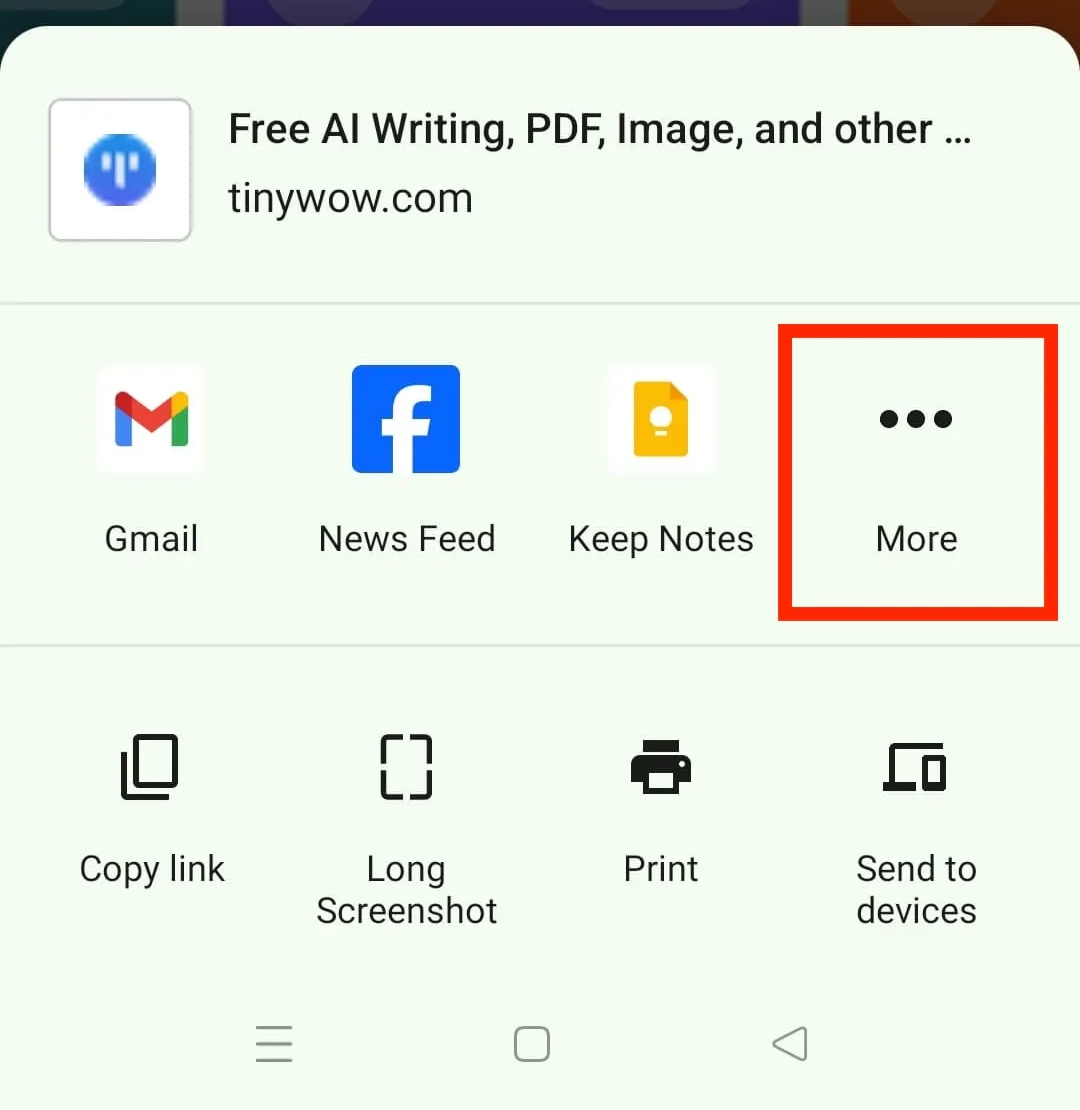
Step 1: Open the share menu
Open any page in Chrome or similar, then tap the share button.
Step 2: Select “Other”
Tap “More” in the shared menu. If “BukuMaku” is displayed, you can tap it to add a bookmark. However, the next step provides a guide on how to move “BukuMaku” to the front.
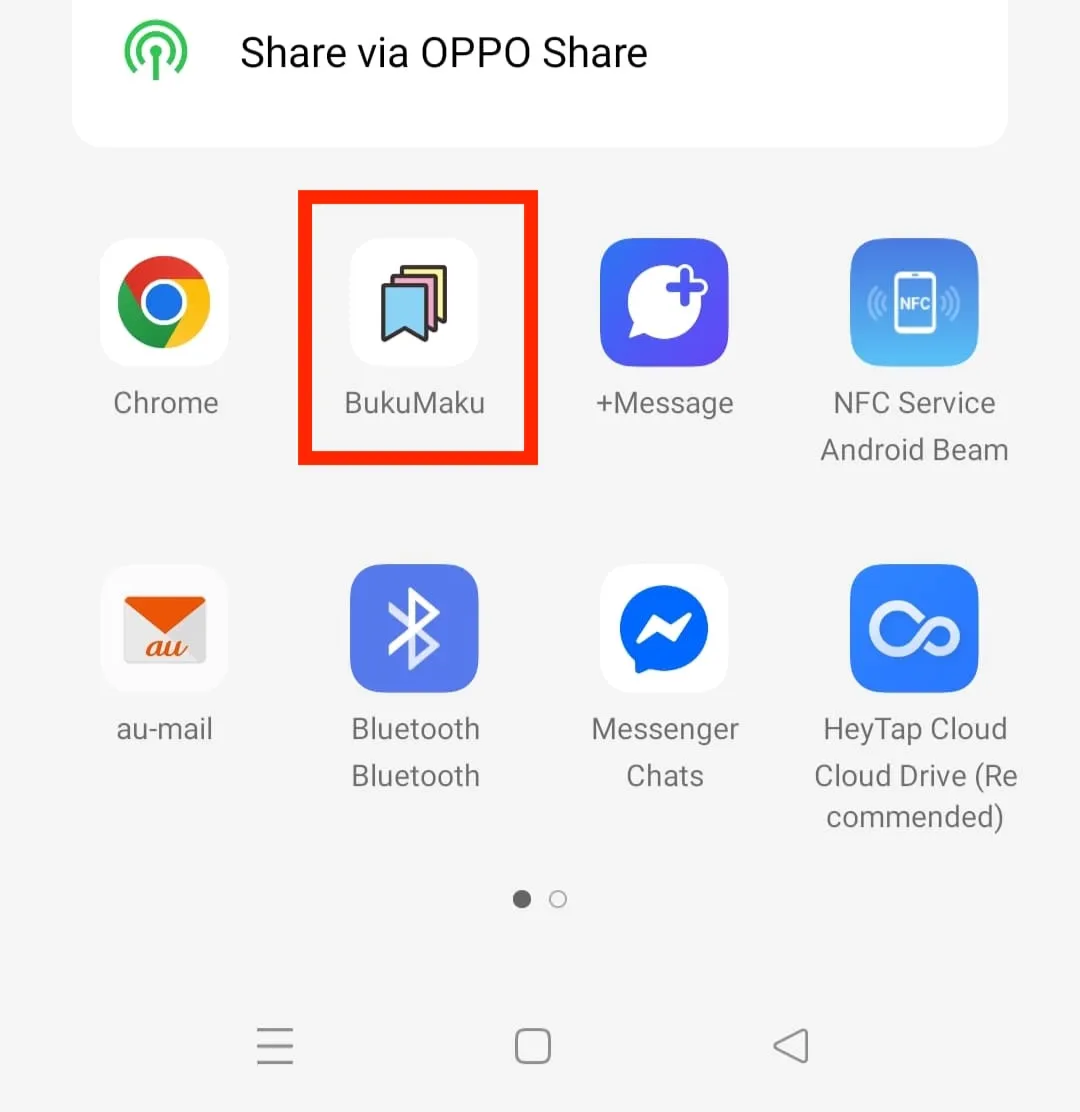
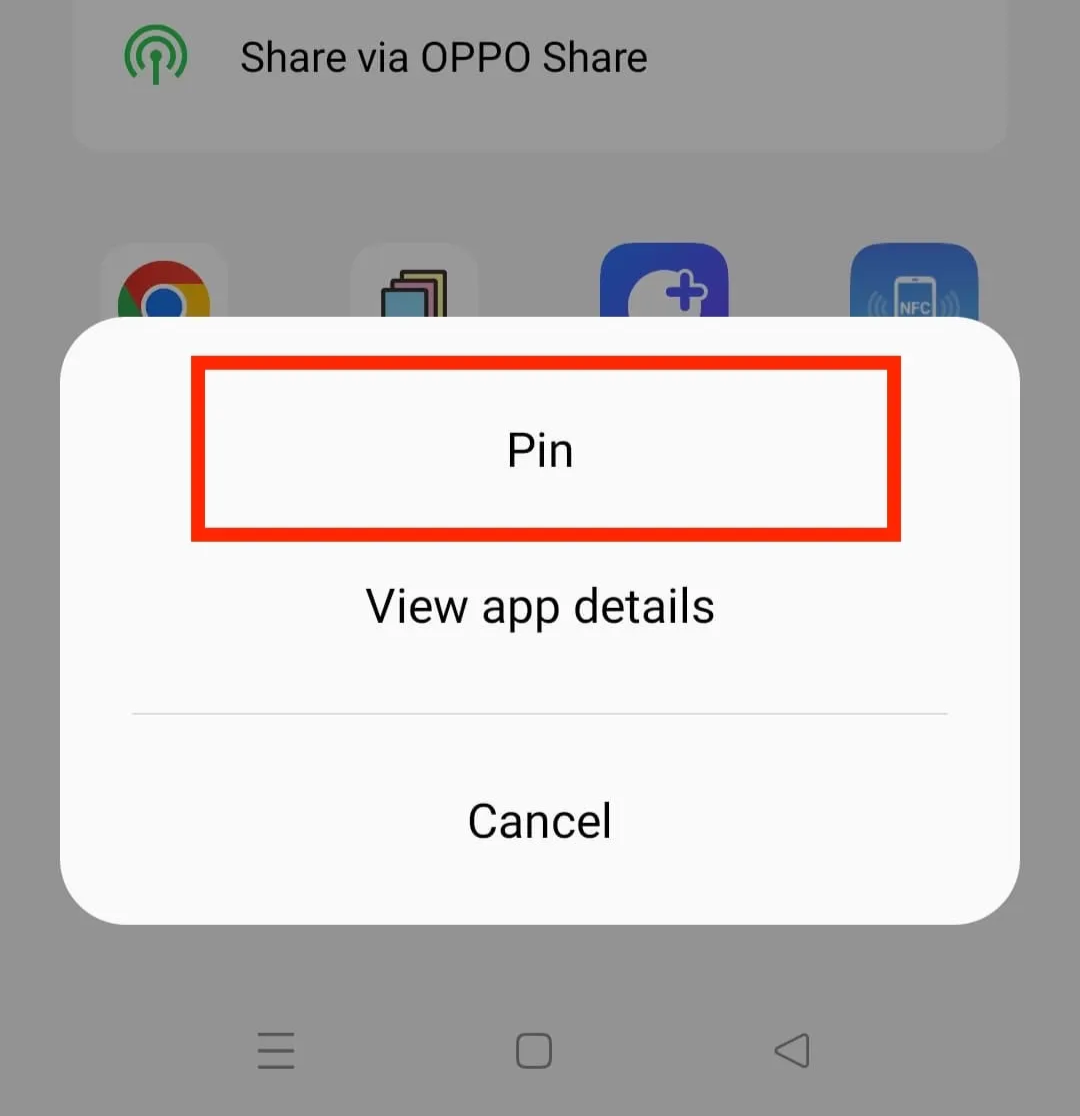
Step 3: Enable “BukuMaku” and Move to the Top
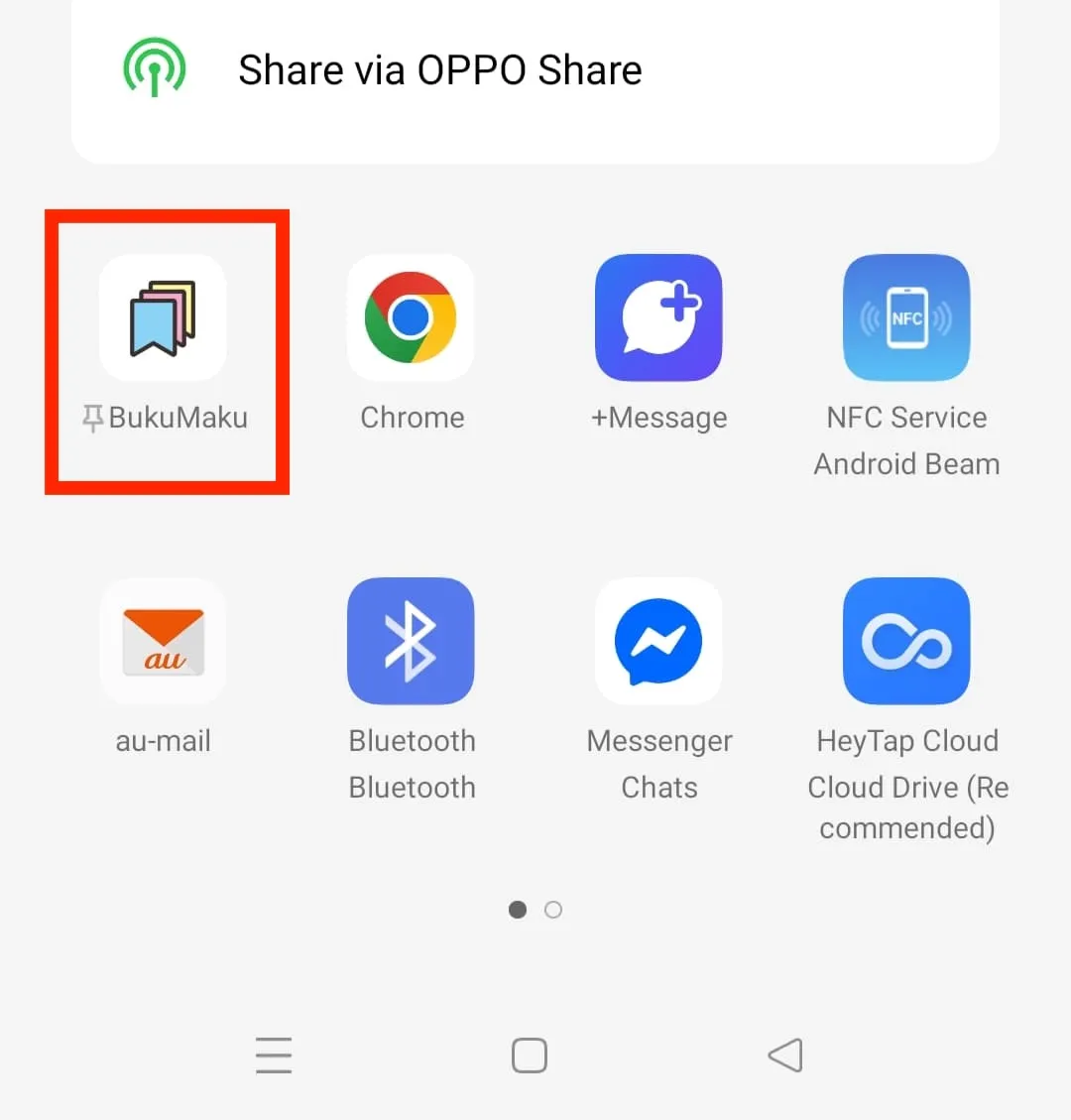
Long press the “BukuMaku” icon. When you long press, a pop-up will appear; click “Pin.” This will pin it as shown, and it will appear at the top.
Step 4: Tap Save
The screen will switch to the BukuMaku app. Select the folder you want to manage, then tap “Save” in the upper-right corner of the screen to save your settings.
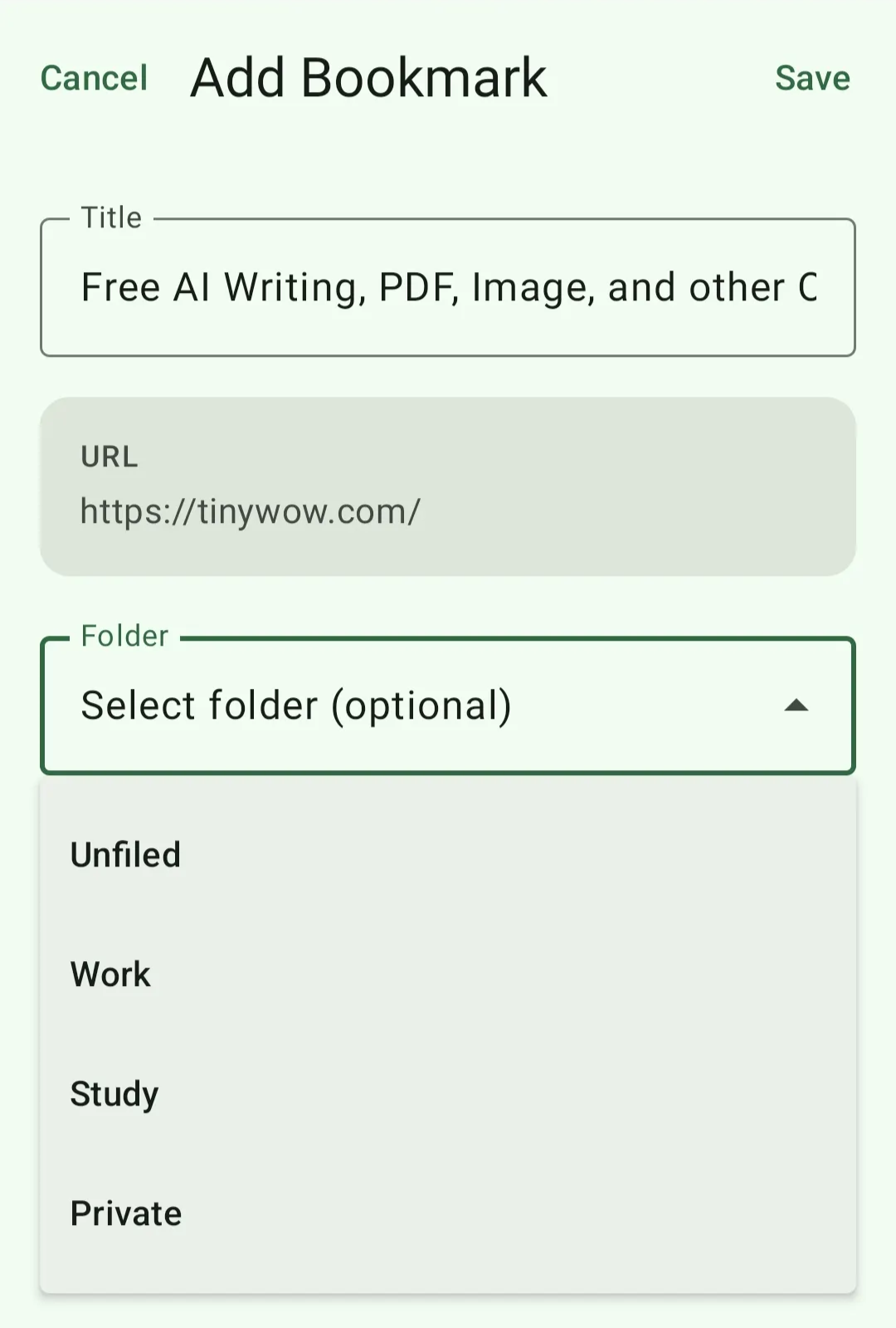
Now you can easily tap the “BukuMaku” displayed in the share menu to add it to your bookmarks 🎉
3. You can use it from other apps too!
You can add bookmarks in the same way from apps other than Chrome:
Examples of usable apps
- Safari
- Firefox
- Twitter/X
- Other apps that can share URLs
How to Use
Simply select “BukuMakuk” from each app's share feature.
4. Frequently Asked Questions
Q1: BukuMaku are not displayed in the share menu
A: Please refer to the “2 Usage Guide” above and enable “BukuMaku”.
Q2: Bookmarks are not being saved
A: Please check the following:
- Whether your internet connection is stable
- Whether the app is the latest version
- Whether your login status is normal (check in the main app)
Q3: The title displays garbled characters.
A: Certain special characters or emojis may be causing this issue. Please edit the title manually.
Q4: Where do saved bookmarks appear?
A: When you open the main app, it will appear in your bookmarks list.
5. When you're in trouble
Issue: Cannot save from the share menu
Solution:
- Restart the device
- Update the app to the latest version
Problem: “App Groups setup error” is displayed
Solution:
- Completely close the app and restart it.
- If the issue persists, reinstall the app.
6. Contact Us
If you have any other questions, please contact us via the in-app inquiry form.
Last Updated: July 16, 2025